Remote access, temporary support or game streaming: choose by task and check the setup
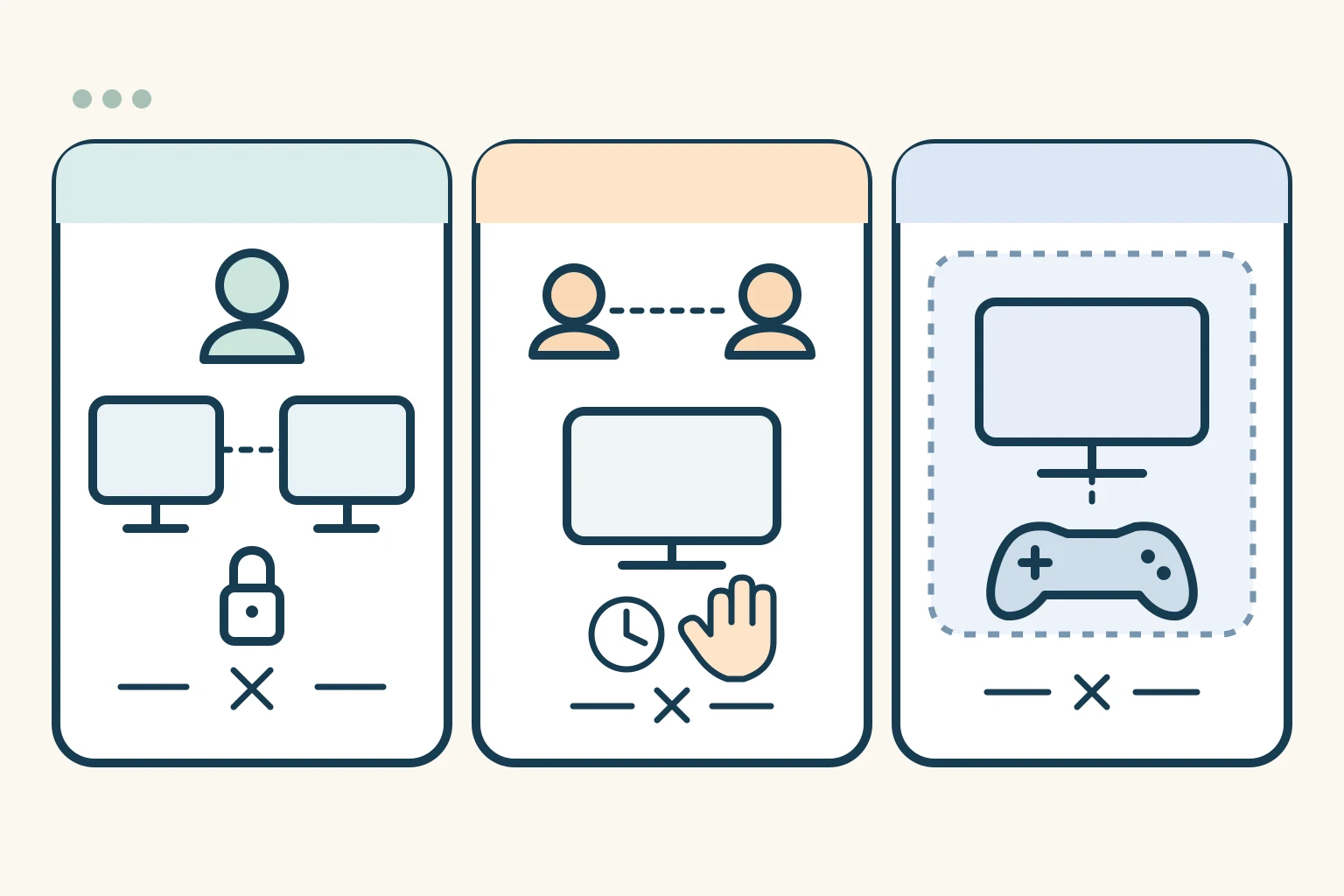
Start with the job you want to finish. A computer you own, a person asking for temporary help and a streaming receiver need different roles and permissions. Choose one path below, then check both the connection and the exit.
Choose a task first
A. Access your own regular computer
- Host and controller/client
- Your computer is the host. Another desktop using Chrome is the controller. Use Chrome Remote Desktop access.
- Presence and consent
- The owner prepares the host and approves local installation. After persistent access is configured, this is not a fresh Share approval for every session.
- Account or pairing
- Sign in to Google and use the host’s PIN. The account-binding explanation is supported by Google’s Cloud example; its VM commands and PIN rules are not Windows desktop instructions.
- Operating system and hardware
- The official host guide covers Windows, macOS and Linux. The steps here follow a Windows desktop host and a desktop Chrome controller; other OS security and session setup need their own official branch. No gaming hardware threshold is established here.
- Network and permissions
- Both ends need Internet access and an available host. You must own or be authorized to control it and have local installation permission. Work, school or managed accounts may restrict access. Sleep, wake and headless use are not verified here.
- Cost type
- The read support pages did not establish public pricing or complete business-use terms. Do not treat this path as a free-commercial-use recommendation.
- Stop and revoke
- End the current session with Disconnect or by closing the tab. Disable remote connections separately to withdraw the host’s persistent access.
- Suitable use and limits
- Use for your authorized computer. Do not use it to bypass an administrator’s policy or as a promise of game-streaming performance.
Official sources: Chrome Remote Desktop computer help ; Chrome Remote Desktop public portal ; Google official account setup example .
Open this site’s catalogue entry; check the official source on its card — Chrome Remote Desktop
B. Give temporary desktop support
- Host and controller/client
- The recipient’s computer is the host and generates the code. The helper is the controller and enters it in Chrome Remote Desktop support.
- Presence and consent
- The recipient checks the helper’s identity and approves sharing. Continuing sharing requires confirmation every 30 minutes, and the recipient can stop it.
- Account or pairing
- Use the official portal. Share only the one-time support code with the intended helper; do not hand over a Google password. The recipient checks the email displayed by the service locally.
- Operating system and hardware
- This is a desktop support path. Mobile behavior and organization-specific permissions are separate branches; no platform performance was tested.
- Network and permissions
- Both ends need Internet access and authorized host components. Sharing gives access to the computer’s apps, files and other contents, not only one browser tab.
- Cost type
- CRD business-use and price conditions remain unverified here. AnyDesk and TeamViewer alternatives have personal/noncommercial versus commercial license conditions.
- Stop and revoke
- The recipient uses Stop Sharing; the helper ends the tab. Any separately configured persistent access needs its own revocation.
- Suitable use and limits
- Use for agreed, temporary assistance. Do not give a code to an unexpected caller or use a support code as a substitute for persistent-access setup.
Official sources: Chrome Remote Desktop computer help ; Chrome Remote Desktop public portal ; AnyDesk personal versus professional usage ; AnyDesk licensing overview ; TeamViewer free noncommercial distinction ; TeamViewer official commercial-use definition .
Open this site’s catalogue entry; check the official source on its card — Chrome Remote Desktop
C. Stream a desktop or game on a trusted LAN
- Host and controller/client
- Install Sunshine on the computer being streamed: the host. Install Moonlight PC on the receiving device: the client.
- Presence and consent
- The host owner prepares the local management interface and approves the selected client’s pairing request. The client owner starts pairing.
- Account or pairing
- Use local Sunshine management credentials and device pairing. These are not a cloud subscription account. Keep credentials and PINs out of the checklist.
- Operating system and hardware
- The canonical path is Windows 11 x64 at both ends, Sunshine v2026.914.233613 and Moonlight PC v6.2.0. Check capture, encoder, decoder and display compatibility; begin with an SDR desktop and ordinary keyboard/mouse.
- Network and permissions
- Use a reachable, trusted LAN. Sunshine’s pinned configuration defaults leave LAN streaming unencrypted and UPnP disabled. This guide does not enable Internet forwarding or change firewall rules; review any installer permissions yourself.
- Cost type
- Sunshine and Moonlight PC use GPLv3 software licenses. Host electricity, equipment and maintenance are separate costs. The optional paid Virtual HID Driver has separate machine-license conditions; its price was not verified.
- Stop and revoke
- End the client stream, close a remaining host session only if needed, then unpair the selected client to withdraw future access. Individual unpairing can leave an active session running.
- Suitable use and limits
- Use for a basic desktop check on your trusted LAN before attempting a configured game. Internet/CGNAT, HDR, gamepad, Raw Input, mobile and ARM branches are not verified by this path. No FPS or latency results are provided.
Official sources: Sunshine overview pinned ; Moonlight PC README pinned ; Sunshine getting started pinned ; Sunshine PIN page source pinned ; Sunshine English UI strings pinned ; Sunshine latest API snapshot ; Moonlight PC latest API snapshot ; Moonlight setup wiki source ; Sunshine configuration pinned ; Sunshine license pinned ; Moonlight PC license pinned ; Sunshine troubleshooting pinned ; Sunshine Troubleshooting page source pinned ; Sunshine API pinned .
Open this site’s catalogue entry; check the official source on its card — Moonlight · Open this site’s catalogue entry; check the official source on its card — Sunshine
Versions and limits before you start
The pinned Sunshine documentation lists Windows 11 or later. Moonlight’s rolling setup wiki still contains older Sunshine Windows 10/11 and macOS requirements plus legacy GeForce Experience sections. For this host path, use Sunshine v2026.914.233613’s requirements; the conflict is not a test showing Windows 10 fails. Its hardware table is explicitly still being revised.
Official sources: Sunshine overview pinned ; Sunshine latest API snapshot .
On Windows, Desktop Duplication capture is tied to the GPU driving the display. Check multi-GPU/eGPU display routing as well as the encoder; a GPU brand alone does not establish support for every model or codec. Windows ARM64 is experimental without hardware acceleration in the pinned guide, so it is not this x64 path.
Official sources: Sunshine getting started pinned ; Sunshine overview pinned .
A trusted LAN is a scope restriction, not an encryption promise. The pinned defaults are LAN encryption 0, WAN encryption 1 and UPnP disabled. The local management page uses HTTPS; that alone does not establish stream encryption. Internet streaming, NAT/CGNAT, upload capacity and router rules require separate evidence and testing.
Official sources: Sunshine configuration pinned ; Moonlight setup wiki source .
The pinned troubleshooting page distinguishes ordinary SendInput fallback from driver-backed Raw Input keyboard/mouse/gamepad. The latter needs an effective paid machine license and Virtual HID Driver version 2026.914.1218.10 or later. Without it, desktop input can work while a Raw Input game does not. The driver price is unknown here; HDR, mobile, gamepad and game performance remain untested.
Official sources: Sunshine troubleshooting pinned .
A. Access your own regular computer
A01 · Prepare the host
- Who does what
- On the host, open the official access portal in Chrome, sign in to the account you intend to use, and download/install the host component following the current prompts. Local system permission may be required.
- Expected outcome — not tested
- The installation and local permission process is complete; you still need to confirm that the host is registered and available.
- If this does not work
- If permission is refused, use Google’s management guidance or contact the administrator. Do not bypass the policy.
Official sources: Chrome Remote Desktop computer help ; Chrome Remote Desktop public portal ; Google official account setup example .
A02 · Complete access setup
- Who does what
- Follow the current host setup prompts. Keep the required host PIN privately. We have not verified the exact Windows setup dialogs or a desktop PIN-length rule.
- Expected outcome — not tested
- Your host can appear in the access computer list. This is an expected acceptance check, not an observed result.
- If this does not work
- If missing, check the signed-in account, host component, Internet availability and managed policy. Google’s Cloud example supports account binding, not a Windows wizard.
Official sources: Chrome Remote Desktop computer help ; Google official account setup example .
A03 · Connect from the controller
- Who does what
- On the controller, open access, select your intended host, enter that host’s PIN and use the arrow to connect.
- Expected outcome — not tested
- The controller shows the intended host desktop.
- If this does not work
- Check account, host availability, network and the correct PIN. Follow Google troubleshooting rather than repeatedly guessing credentials.
Official sources: Chrome Remote Desktop computer help .
A04 · Check this task
- Who does what
- Use a nonsensitive window to check the desktop and basic keyboard/mouse input. If audio is needed, test and record it separately.
- Expected outcome — not tested
- Record the actual screen, input and audio results individually. All template results begin as not_tested.
- If this does not work
- Use Google troubleshooting for failures. Seeing a desktop does not establish audio or every application’s success.
Official sources: Chrome Remote Desktop computer help .
Editorial acceptance check; no observed product result
A05 · End the current session
- Who does what
- Close the controller’s tab or choose Options → Disconnect.
- Expected outcome — not tested
- The current session ends; persistent host access is a separate setting.
- If this does not work
- If access remains or you need to withdraw permission, have the owner follow the next revocation step.
Official sources: Chrome Remote Desktop computer help .
A06 · Withdraw persistent access
- Who does what
- In the access computer list, use Disable remote connections for the intended host. If no longer needed, follow Google’s Windows host removal instructions as a separate action.
- Expected outcome — not tested
- Confirm that remote access is disabled and, if requested, the host component is removed.
- If this does not work
- If disabling or removal fails, use Google Help or your managed-device administrator; Windows interface details may differ.
Official sources: Chrome Remote Desktop computer help .
B. Give temporary desktop support
B01 · Prepare the recipient’s computer
- Who does what
- The recipient opens the official support portal in Chrome. Under Get Support, download/install the required host component using the current prompts.
- Expected outcome — not tested
- The recipient is ready to generate a support code.
- If this does not work
- Check local permissions and Google’s managed restrictions. The helper does not need to collect the recipient’s password.
Official sources: Chrome Remote Desktop computer help .
B02 · Generate a one-time code
- Who does what
- The recipient chooses Generate Code and privately gives the one-time code only to the agreed helper. Do not put it in the checklist.
- Expected outcome — not tested
- The intended helper receives the code for this sharing attempt.
- If this does not work
- If the code was already used or connection does not proceed, return to the official support flow. We do not establish a fixed expiry duration.
Official sources: Chrome Remote Desktop computer help .
B03 · The helper requests access
- Who does what
- The helper opens support, enters the code under Give support and selects Connect. A support code does not belong in the access PIN flow.
- Expected outcome — not tested
- The recipient receives a helper-identity confirmation before sharing.
- If this does not work
- Check Internet, Chrome version and management restrictions using Google troubleshooting.
Official sources: Chrome Remote Desktop computer help .
B04 · The recipient consents
- Who does what
- The recipient checks the displayed helper email against the agreed person, understands the full-computer access and personally selects Share.
- Expected outcome — not tested
- After approval, the helper can see the intended desktop. No approval was performed in our research.
- If this does not work
- If the identity differs, do not share. Reconfirm the helper privately and keep email addresses out of the shared checklist.
Official sources: Chrome Remote Desktop computer help .
B05 · Check and reconfirm
- Who does what
- Both people check the intended desktop and required input. The recipient confirms continued sharing when prompted every 30 minutes.
- Expected outcome — not tested
- Record only the actual results for this assistance task, including audio if it is needed and tested.
- If this does not work
- Use Google troubleshooting for screen/input failures. Untested audio or applications remain not_tested.
Official sources: Chrome Remote Desktop computer help .
B06 · Stop sharing and check persistent access
- Who does what
- The recipient selects Stop Sharing and the helper ends the tab. The code works once. If access was configured separately, revoke it using A06.
- Expected outcome — not tested
- This sharing session ends. This does not establish that other remote products or persistent host settings are disabled.
- If this does not work
- Check separate access settings with A06; use Google Help if this sharing session does not end as expected.
Official sources: Chrome Remote Desktop computer help .
C. Stream a desktop or game on a trusted LAN
C01 · Check the canonical branch
- Who does what
- Check Windows 11 x64 at both ends, a capturable host display with compatible GPU/encoder and a suitable client decoder. Begin with a trusted LAN, SDR desktop and ordinary keyboard/mouse.
- Expected outcome — not tested
- Continue only if the documented prerequisites fit your equipment. Encoder availability alone does not prove display capture works.
- If this does not work
- Stop this branch if OS/capture requirements do not fit. Read the applicable official OS/GPU branch; the hardware table is a work in progress, not buying advice.
Official sources: Sunshine overview pinned ; Sunshine getting started pinned ; Moonlight PC README pinned .
C02 · Install Sunshine on the host
- Who does what
- Use the pinned stable Sunshine release’s AMD64/x64 MSI and follow its Windows installation guidance. Review each option; do not substitute the retired EXE installer or lite service scripts.
- Expected outcome — not tested
- The host installation completes. We did not download or run the installer.
- If this does not work
- Use the official Getting Started and installer-log guidance if installation fails. Do not blindly enable drivers, services or networking features.
Official sources: Sunshine latest API snapshot ; Sunshine getting started pinned .
C03 · Open the host’s local management interface
- Who does what
- On the host, open https://localhost:47990, verify that it is your local Sunshine instance and set its local management credentials. The documented self-signed certificate applies only to this verified local interface.
- Expected outcome — not tested
- You can sign in to your host’s management interface; this is not a cloud account.
- If this does not work
- If it will not open, check that Sunshine is running and consult the documented firewall checks. For credentials, use Forgotten Credentials guidance. Do not publish passwords or bypass unrelated site warnings.
Official sources: Sunshine getting started pinned ; Sunshine troubleshooting pinned .
C04 · Prepare Moonlight PC on the client
- Who does what
- Choose the Windows package from the pinned Moonlight PC v6.2.0 release and follow its current official instructions. This version is for PC/Qt, not every mobile app.
- Expected outcome — not tested
- The Moonlight PC client can start. We did not operate its installer or setup interface.
- If this does not work
- Check the package architecture and official README. Other OS/mobile branches need their own version evidence.
Official sources: Moonlight PC latest API snapshot ; Moonlight PC README pinned .
C05 · Start pairing from the client
- Who does what
- Keep both ends on the reachable trusted LAN. Select your host in Moonlight. If discovery does not show it, use your host’s private address locally as described by the official setup guide; do not record the address in the checklist.
- Expected outcome — not tested
- Moonlight shows a PIN and Sunshine receives the corresponding pending request.
- If this does not work
- Check same-network reachability and Sunshine logs. Do not jump to Internet port forwarding or disable the whole firewall.
Official sources: Moonlight setup wiki source ; Sunshine PIN page source pinned .
Versioned source code; product interface not operated
C06 · Approve the correct pending client
- Who does what
- On Sunshine’s PIN page, identify/select the pending client, enter the four-digit PIN shown by Moonlight and a device name, then use Send. Multiple requests require choosing the correct one. These details come from the pinned UI source and English labels.
- Expected outcome — not tested
- After the documented success indication, return to Moonlight and check the host’s application list. This interface was not operated in our research.
- If this does not work
- If no request appears, recheck both ends. For a wrong PIN, follow the documented pairing failure. Do not approve an unfamiliar request; cancel the selected pending request if needed.
Official sources: Sunshine PIN page source pinned ; Sunshine English UI strings pinned .
Versioned source code; product interface not operated
C07 · Start a configured desktop or application
- Who does what
- In Moonlight, select the configured Desktop application first. If it is missing, use Sunshine’s application guidance to configure it. The documented default Desktop entry starts a stream without needing a launch command. This does not prohibit commands in other application configurations; games need their own configured application.
- Expected outcome — not tested
- You see the intended host desktop. This does not establish that a game or every application works.
- If this does not work
- Check application configuration, logs, capture and encoder branches in the official documentation. Do not paste Linux desktop commands into Windows.
Official sources: Sunshine getting started pinned .
C08 · Check screen, audio and input separately
- Who does what
- Check the intended desktop and ordinary keyboard/mouse; test audio if needed. Record game, Raw Input and gamepad checks separately. Do not buy or enable the optional VHD merely to complete this basic check.
- Expected outcome — not tested
- Record each actual result. All template fields begin as not_tested; desktop input is not proof of game input.
- If this does not work
- For Raw Input failures, read the VHD/license and SendInput limits. Driver-backed input needs a valid paid machine license and compatible driver; a purchase is not a promised fix.
Official sources: Sunshine troubleshooting pinned .
Editorial acceptance check; no observed product result
C09 · End the client stream
- Who does what
- On the PC client, use Ctrl+Alt+Shift+Q to end the stream. Check separately whether the host application is still running.
- Expected outcome — not tested
- The client leaves the stream; the host application may continue.
- If this does not work
- Changing windows is not disconnection. If a remaining host session must end, save work and use the next step.
Official sources: Moonlight setup wiki source .
C10 · Close a remaining host session if needed
- Who does what
- Only if a remaining session/application must end, save host work and use Force Close in Sunshine’s Troubleshooting page. Saving work is our precaution, not a vendor no-loss guarantee.
- Expected outcome — not tested
- The documented action closes the remaining session/application. It is a different action from unpairing.
- If this does not work
- Use Sunshine logs and the official close-session explanation if it fails. Force Close is conditional, not a compulsory action for every normal exit.
Official sources: Sunshine Troubleshooting page source pinned ; Sunshine English UI strings pinned .
Versioned source code; product interface not operated
C11 · Revoke future access for the selected client
- Who does what
- In Troubleshooting → Unpair Devices, check the intended client and remove that entry with its trash button. Use Unpair All only if you intend to revoke every paired device.
- Expected outcome — not tested
- Check that the selected entry is removed and cannot start/resume a new session. Individually unpaired active sessions may remain connected.
- If this does not work
- If a session is still active, complete C09/C10 separately. A success label in source code is not evidence that your session has ended.
Official sources: Sunshine Troubleshooting page source pinned ; Sunshine English UI strings pinned .
Versioned source code; product interface not operated
C12 · Remove the host only when no longer needed
- Who does what
- If you no longer need Sunshine as a host, follow the pinned Windows MSI guidance to uninstall it from the installed-app list.
- Expected outcome — not tested
- Confirm locally that the host component was removed.
- If this does not work
- Windows-version details may differ. Follow the applicable documentation rather than lite service/firewall scripts.
Official sources: Sunshine getting started pinned .
Bounded alternatives, with the same comparison dimensions
These seven rows help identify the next product to investigate. They are not seven additional tutorials or a ranking. Unknown account, network and revocation details stay unknown; check the relevant official branch before choosing one. Catalogue links open this site’s cards, where you can check the provider’s official source.
Chrome Remote Desktop
- Host and controller/client
- access: host/controller; support: recipient/code producer and helper.
- Presence and consent
- Owner prepares access; support requires recipient consent and 30-minute reconfirmation.
- Account or pairing
- Google sign-in and host PIN; support uses a one-time code.
- Operating system and hardware
- Desktop Windows/macOS/Linux host; mobile is a separate client branch.
- Network and permissions
- Internet, local host permission and managed-policy allowance.
- Cost type
- Public pricing and complete business conditions unknown in this research.
- Stop and revoke
- Session disconnect, persistent-access disable and support stop are separate: A05/A06/B06.
- Suitable use and limits
- Own computer or attended assistance; no game-performance conclusion.
- If this does not work
- Google official troubleshooting and managed-access guidance.
Official sources: Chrome Remote Desktop computer help ; Chrome Remote Desktop public portal ; Google official account setup example .
Open this site’s catalogue entry; check the official source on its card — Chrome Remote Desktop
AnyDesk
- Host and controller/client
- Outgoing controller and incoming recipient; attended use only here.
- Presence and consent
- Recipient can accept/reject through Interactive Access; unattended access is a different setup.
- Account or pairing
- Basic attended account requirement not verified; permission and commercial-license conditions must still be met.
- Operating system and hardware
- Windows/macOS/Linux listed; specific capabilities and binary version not pinned.
- Network and permissions
- Both ends must be reachable; full port, service and region requirements not verified here.
- Cost type
- Free personal use is noncommercial. Commercial outgoing clients need a license; incoming-only recipients do not. Price unknown.
- Stop and revoke
- Accept window supports session disconnect. Permanent unattended revocation was not fully verified.
- Suitable use and limits
- Conditional attended-support alternative; free download does not mean free client work.
- If this does not work
- Official Interactive Access and Accepting the connection documents; deeper network diagnosis requires more evidence.
Official sources: AnyDesk personal versus professional usage ; AnyDesk licensing overview ; AnyDesk interactive access ; AnyDesk accepting and disconnecting ; AnyDesk supported OS .
Open this site’s catalogue entry; check the official source on its card — AnyDesk
TeamViewer
- Host and controller/client
- Recipient: ordinary QuickSupport module. Helper: full client. QuickSupport is not the persistent Host module.
- Presence and consent
- QuickSupport is temporary attended support; custom QuickSupport has separate commercial conditions.
- Account or pairing
- Requirements vary by module; this research does not establish that both ends need no account.
- Operating system and hardware
- Desktop-module comparison only; minimum OS and binary version unknown.
- Network and permissions
- Vendor service and endpoint reachability; all network requirements not verified here.
- Cost type
- Personal noncommercial use is free; commercial activity requires the applicable license. Price and checkout unknown.
- Stop and revoke
- Exact current Remote stop/persistent-revocation interface not verified. Do not copy Classic interface instructions.
- Suitable use and limits
- Conditional temporary-support alternative; work devices and paid activity must be checked against commercial terms.
- If this does not work
- Official Remote module/license knowledge base; Classic licensing evidence supports definitions, not current UI.
Official sources: TeamViewer QuickSupport roles ; TeamViewer full client roles ; TeamViewer free noncommercial distinction ; TeamViewer official commercial-use definition .
Open this site’s catalogue entry; check the official source on its card — TeamViewer
Remmina
- Host and controller/client
- Linux/GTK client plus an existing RDP/VNC/SSH server; it does not enable the target server for you.
- Presence and consent
- Consent and attendance depend on the target server policy.
- Account or pairing
- Authorized target credentials and protocol plugin; no single Remmina account promise.
- Operating system and hardware
- Project release v1.4.43; distro packages may differ. Old GitHub v1.2.30 is a 2018 snapshot.
- Network and permissions
- Client must reach the existing protocol server; no new Internet ports are opened by this guide.
- Cost type
- GPLv2+ software; target OS/server licensing and administration costs remain separate and unknown.
- Stop and revoke
- Ending a client session does not revoke server credentials or permissions; protocol-specific revocation needs its own check.
- Suitable use and limits
- Advanced, existing-service environment; not a cloud instant-connect alternative.
- If this does not work
- Official distro/plugin documentation and the target server administrator’s documentation.
Official sources: Remmina official GitLab latest release API ; Remmina README pinned ; Remmina official project ; Remmina COPYING pinned .
Open this site’s catalogue entry; check the official source on its card — Remmina
Apache Guacamole
- Host and controller/client
- Browser → web application → guacd gateway → existing remote desktop server. A deployment owner is required.
- Presence and consent
- Depends on gateway authentication and target authorization policy.
- Account or pairing
- Gateway authentication and target credentials; browser installation alone does not create access.
- Operating system and hardware
- Version 1.6.0 architecture; browser client plus maintained gateway and target platform requirements.
- Network and permissions
- Browser-to-gateway and gateway-to-target reachability must both be established.
- Cost type
- Apache 2.0 software; hosting, TLS, backup, administration and possible third-party support costs are separate, amounts unknown.
- Stop and revoke
- Browser disconnection is not gateway/target revocation; authentication changes depend on the deployment.
- Suitable use and limits
- Managed gateway for an existing server environment; not a complete deployment tutorial here.
- If this does not work
- Official 1.6.0 architecture/install guide and the environment administrator.
Official sources: Guacamole architecture pinned ; Apache Guacamole project ; Guacamole installation pinned .
Open this site’s catalogue entry; check the official source on its card — Apache Guacamole
Parsec
- Host and controller/client
- Windows/macOS host; additional platforms can be clients.
- Presence and consent
- Depends on host/share authorization; full invitation and revocation steps not verified.
- Account or pairing
- Exact account/authentication branch unknown here; no invented sign-in or sharing interface.
- Operating system and hardware
- Host needs a hardware video encoder and suitable display/GPU routing. Linux/Android/Chromium can be clients; iOS/iPad/Safari are not supported in the read compatibility source.
- Network and permissions
- Detailed local/Internet requirements not fully checked in this comparison.
- Cost type
- Personal and paid Individuals Warp are noncommercial. Commercial use requires Teams/Enterprise. Annual billing: Teams US$30 per person/month equivalent, US$360/year; Enterprise US$45 equivalent, US$540/year. These are base prices, not monthly billing or country/tax checkout totals.
- Stop and revoke
- Exact session-end and permission-revocation interface unknown in this limited research.
- Suitable use and limits
- Investigate by platform and business purpose. Paying for Warp does not grant commercial use.
- If this does not work
- Official hardware compatibility, pricing and Unity Cloud Terms, updated 30 June 2026 in the read source; no account, trial or terms acceptance performed.
Official sources: Parsec hardware and software compatibility ; Parsec pricing ; Parsec current additional terms .
Open this site’s catalogue entry; check the official source on its card — Parsec
Moonlight PC + Sunshine
- Host and controller/client
- Sunshine host and Moonlight PC client; follow path C.
- Presence and consent
- Host owner prepares and approves pairing; client owner initiates it.
- Account or pairing
- Local Sunshine management credentials and selected device pairing.
- Operating system and hardware
- Canonical Windows 11 x64; Sunshine v2026.914.233613, Moonlight PC v6.2.0; basic SDR desktop first.
- Network and permissions
- Trusted LAN; default LAN stream is unencrypted. WAN/CGNAT is outside this path.
- Cost type
- GPLv3 software plus maintenance/electricity; paid VHD machine license is separate, price unknown.
- Stop and revoke
- C09 ends stream, C10 conditionally closes the remaining session/app, C11 unpairs future access. Active sessions may survive individual unpairing.
- Suitable use and limits
- Trusted-LAN desktop acceptance; no untested gamepad, HDR, mobile or performance promise.
- If this does not work
- Pinned Sunshine troubleshooting/configuration and Moonlight setup/troubleshooting; retain OS/version differences.
Official sources: Sunshine overview pinned ; Moonlight PC README pinned ; Sunshine configuration pinned ; Sunshine troubleshooting pinned ; Sunshine license pinned ; Moonlight PC license pinned ; Sunshine Troubleshooting page source pinned ; Sunshine English UI strings pinned .
Open this site’s catalogue entry; check the official source on its card — Moonlight · Open this site’s catalogue entry; check the official source on its card — Sunshine
Locate a failure before changing settings
Use the failed check to choose the official next step. A retrieved page or a visible pairing-success message is not proof that screen, audio, input, disconnection and revocation all passed.
Host preparation or account/policy
For CRD, confirm Internet, current Chrome, host availability and managed policy. Google lists antivirus/network traffic checks; involve the administrator instead of disabling protection.
Official sources: Chrome Remote Desktop computer help .
Pairing or client identity
For Sunshine, check the selected pending client and the PIN displayed locally. Reject unfamiliar requests. For CRD support, confirm the helper before Share.
Official sources: Sunshine PIN page source pinned ; Sunshine English UI strings pinned ; Sunshine getting started pinned ; Sunshine troubleshooting pinned ; Chrome Remote Desktop computer help .
Network
For path C, check LAN reachability and documented firewall rules. Do not treat a discovery failure as a reason to enable UPnP or WAN forwarding. For CRD, use Google’s Internet/managed-network guidance.
Official sources: Sunshine configuration pinned ; Sunshine English UI strings pinned ; Sunshine getting started pinned ; Sunshine troubleshooting pinned ; Chrome Remote Desktop computer help .
Platform, capture or encoder
Check Sunshine’s Windows display/GPU routing and pinned troubleshooting logs. Choose the actual OS branch; do not paste Linux portal-reset or service scripts into Windows.
Official sources: Sunshine getting started pinned ; Sunshine English UI strings pinned ; Sunshine troubleshooting pinned .
Input or application
Separate desktop input from Raw Input/gamepad and check the configured application. Read the paid-driver and SendInput limits before proposing any purchase.
Official sources: Sunshine troubleshooting pinned ; Sunshine getting started pinned .
Session end or revocation
Check disconnect, remaining host session and future permission separately: A05/A06, B06, or C09/C10/C11. Do not mark revoke passed merely because a tab closed.
Official sources: Chrome Remote Desktop computer help ; Moonlight setup wiki source ; Sunshine Troubleshooting page source pinned ; Sunshine English UI strings pinned ; Sunshine API pinned .
Copyable preflight and acceptance checklist
Use one row per task. Fill generic OS/version and role information locally, then record only checks you actually perform. Every test result starts as not_tested; license confirmation starts as unknown. Leave the date blank until you actually perform a verification or test.
Do not add names, email/account details, device identifiers, IP addresses, PINs, support codes, passwords or tokens. Do not attach unredacted logs. Keep any local address or code used during connection out of the shareable file.
Select the CSV text below with the keyboard or pointer and copy it into a local text file or spreadsheet. A CSV download is also supplied. This template is not a test receipt.
Result codes: not_tested = not performed; passed = actually verified; failed = actually failed; not_required = this task genuinely does not require it; unknown = not established. Do not change an untested audio result to not_required merely because you did not check it.
Download the untested checklist CSV
What each CSV field records
- task
- Task A, B or C
- host_os_version
- Host OS and version; no device identifier
- controller_or_client_os_version
- Controller/client OS and version; no device identifier
- host_role
- Generic host role
- other_end_role
- Generic other-end role
- host_product_version
- Installed host product version
- other_product_version
- Installed other-end product version
- official_source_urls
- Official public source URLs
- personal_or_business_use
- Personal or business purpose
- license_confirmation
- Applicable license confirmation
- network_scope
- Internet service or trusted LAN scope
- preparation_result
- Preparation result
- screen_result
- Screen result
- audio_result
- Audio result
- input_result
- Input result
- disconnect_result
- Current-session disconnect result
- revoke_result
- Future-access revocation result
- checked_date
- Date of actual check
- test_status
- Overall actual test status
- nonidentifying_failure_category
- Nonidentifying failure category only
Keep costs and test status separate
Free download, noncommercial personal use, business licensing and self-hosted operation are different conditions. GPL/Apache software does not remove electricity, maintenance, server or content-license costs. Parsec Warp is paid but noncommercial; an annual per-month equivalent is not a monthly-billing price. Check current applicable terms before spending. No purchase or trial was made for this guide.
Official sources: Sunshine license pinned ; Moonlight PC license pinned ; Sunshine troubleshooting pinned ; Remmina README pinned ; Remmina COPYING pinned ; Apache Guacamole project ; Guacamole installation pinned ; AnyDesk personal versus professional usage ; AnyDesk licensing overview ; TeamViewer free noncommercial distinction ; TeamViewer official commercial-use definition ; Parsec pricing .
A real test receipt would need installed versions, generic OS details, scope, date and observed results with identifying data removed. This guide does not establish Internet streaming, business deployment, latency/FPS, gamepad/HDR, mobile compatibility or a working connection on your equipment. These branches need separate official evidence and testing.
Official references and source dates
References below retain their original read dates, version pins or rolling-document labels. They do not replace the catalogue’s original verification dates. English interface labels are retained where verified; localized product buttons were not checked in every language. Release and plan details should be rechecked before publication or use.
- AnyDesk supported OS
Source read: 2026-10-05 03:13 +08:00; Version scope: Rolling documentation; interface details may change. - AnyDesk licensing overview
Source read: 2026-10-05 03:17 +08:00; Version scope: Rolling documentation; interface details may change. - AnyDesk personal versus professional usage
Source read: 2026-10-05 03:30 +08:00; Version scope: Rolling documentation; interface details may change. - AnyDesk interactive access
Source read: 2026-10-05 03:26 +08:00; Version scope: Rolling documentation; interface details may change. - AnyDesk accepting and disconnecting
Source read: 2026-10-05 03:29 +08:00; Version scope: Rolling documentation; interface details may change. - Chrome Remote Desktop computer help
Source read: 2026-10-05 03:13 +08:00; Version scope: Rolling documentation; interface details may change. - Chrome Remote Desktop public portal
Source read: 2026-10-05 03:17 +08:00; Version scope: Rolling documentation; interface details may change. - Google official account setup example
Source read: 2026-10-05 03:26 +08:00; Version scope: Rolling documentation; interface details may change. - Moonlight setup wiki source
Source read: 2026-10-05 03:13 +08:00; Version scope: Rolling documentation; interface details may change. - Moonlight PC README pinned
Source read: 2026-10-05 03:13 +08:00; Version scope: v6.2.0. - Moonlight PC license pinned
Source read: 2026-10-05 03:13 +08:00; Version scope: v6.2.0. - Moonlight PC latest API snapshot
Source read: 2026-10-05 03:09 +08:00; Version scope: Rolling documentation; interface details may change. - Parsec hardware and software compatibility
Source read: 2026-10-05 03:30 +08:00; Version scope: Rolling documentation; interface details may change. - Parsec pricing
Source read: 2026-10-05 03:13 +08:00; Version scope: Rolling documentation; interface details may change. - Parsec current additional terms
Source read: 2026-10-05 03:17 +08:00; Version scope: Rolling documentation; interface details may change. - Remmina official project
Source read: 2026-10-05 03:13 +08:00; Version scope: Rolling documentation; interface details may change. - Remmina official GitLab latest release API
Source read: 2026-10-05 03:17 +08:00; Version scope: v4. - Remmina README pinned
Source read: 2026-10-05 03:26 +08:00; Version scope: v1.4.43. - Remmina COPYING pinned
Source read: 2026-10-05 03:26 +08:00; Version scope: v1.4.43. - Sunshine API pinned
Source read: 2026-10-05 03:13 +08:00; Version scope: v2026.914.233613. - Sunshine getting started pinned
Source read: 2026-10-05 03:13 +08:00; Version scope: v2026.914.233613. - Sunshine license pinned
Source read: 2026-10-05 03:13 +08:00; Version scope: v2026.914.233613. - Sunshine overview pinned
Source read: 2026-10-05 03:17 +08:00; Version scope: v2026.914.233613. - Sunshine PIN page source pinned
Source read: 2026-10-05 03:17 +08:00; Version scope: v2026.914.233613. - Sunshine Troubleshooting page source pinned
Source read: 2026-10-05 03:17 +08:00; Version scope: v2026.914.233613. - Sunshine troubleshooting pinned
Source read: 2026-10-05 03:26 +08:00; Version scope: v2026.914.233613. - Sunshine configuration pinned
Source read: 2026-10-05 03:26 +08:00; Version scope: v2026.914.233613. - Sunshine English UI strings pinned
Source read: 2026-10-05 03:26 +08:00; Version scope: v2026.914.233613. - Sunshine latest API snapshot
Source read: 2026-10-05 03:09 +08:00; Version scope: Rolling documentation; interface details may change. - TeamViewer QuickSupport roles
Source read: 2026-10-05 03:17 +08:00; Version scope: Rolling documentation; interface details may change. - TeamViewer full client roles
Source read: 2026-10-05 03:17 +08:00; Version scope: Rolling documentation; interface details may change. - TeamViewer free noncommercial distinction
Source read: 2026-10-05 03:29 +08:00; Version scope: Rolling documentation; interface details may change. - TeamViewer official commercial-use definition
Source read: 2026-10-05 03:29 +08:00; Version scope: Rolling documentation; interface details may change. - Apache Guacamole project
Source read: 2026-10-05 03:13 +08:00; Version scope: Rolling documentation; interface details may change. - Guacamole architecture pinned
Source read: 2026-10-05 03:26 +08:00; Version scope: 1.6.0. - Guacamole installation pinned
Source read: 2026-10-05 03:26 +08:00; Version scope: 1.6.0.