
Steam Remote Play with NordVPN: fix a missing PC or stuttering stream
Practical guide · Official sources reviewed 16 October 2026
The gaming PC is awake, the controller is ready, and the living-room screen still cannot find the computer. Or it connects, then every camera turn feels sticky. Those are two different problems. Start with the branch that matches your screen; changing VPN countries at random can hide the useful clue.
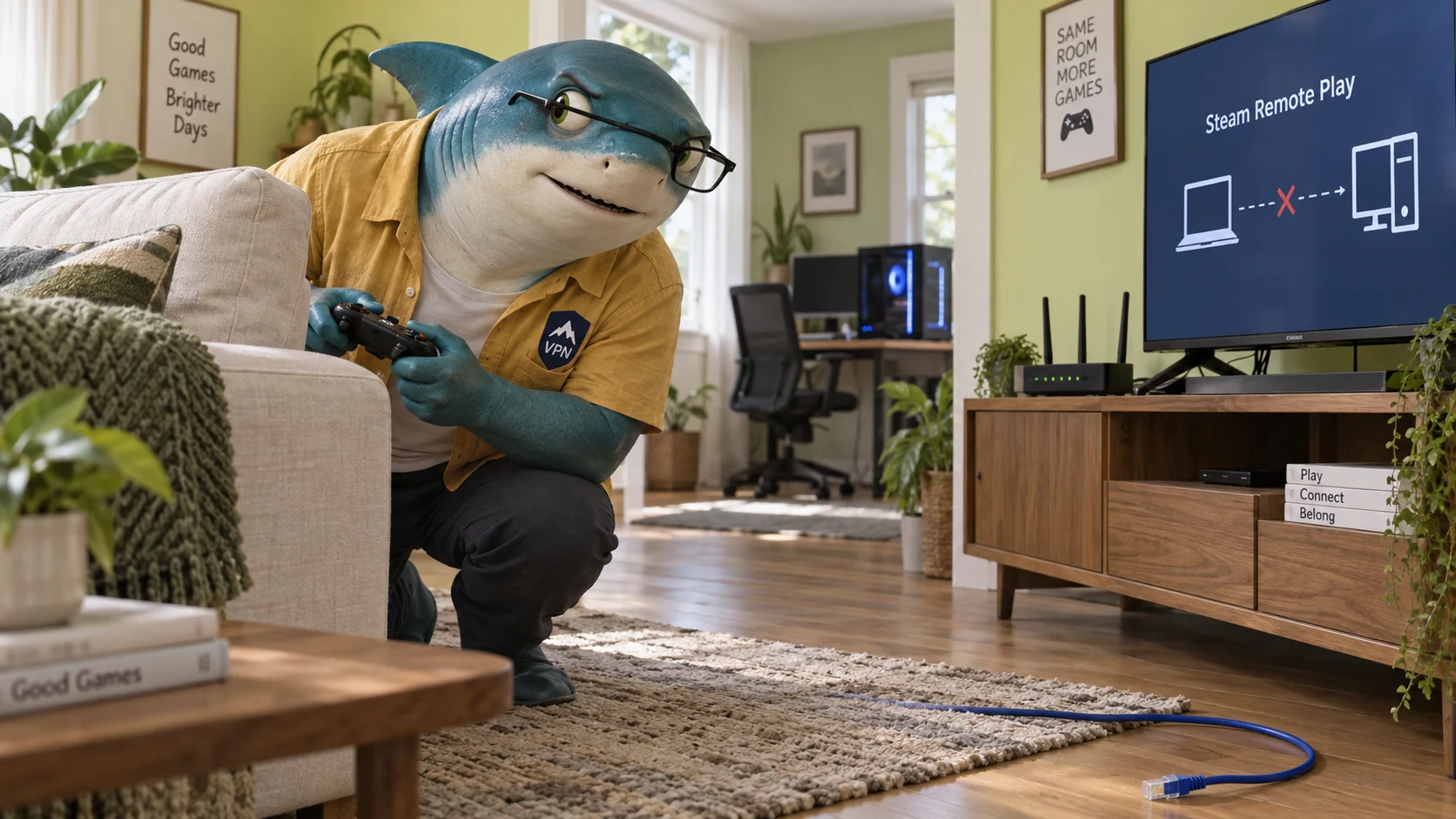
First decide: missing host, frozen picture or delayed input?
Remote Play sends the host computer’s picture and sound to another device, and sends your controls back. The host still runs the game. A missing computer points toward discovery or setup; a choppy picture after connection can involve the network, capture, encoding or decoding. A fast internet download does not check all those stages.
Write down which device hosts, which receives, whether both are at home and the exact symptom. Try the game directly on the host first. If it already struggles there, fix that before treating the stream as a VPN problem. Remote Play Anywhere between your own devices is also different from inviting a friend through Remote Play Together.
Official reference: Steam Remote Play
For a missing PC, check the ordinary setup before the tunnel
Update Steam on both ends, leave the host awake and confirm Remote Play is enabled in Steam settings. For your own Remote Play Anywhere session, check that both Steam clients use the same account. In the receiving library, look for the streaming option associated with the host rather than assuming a local Play button proves the connection is ready.
On a home network, confirm both devices belong to the same trusted subnet. A guest Wi-Fi name can share your internet connection while separating devices from one another. Being connected to the same public VPN location does not turn two devices into neighbors on your home LAN. Keep that distinction in mind before buying a different plan.
Official reference: Steam Remote Play
Check NordVPN’s local visibility control on Windows
NordVPN documents a Windows setting called Stay invisible on LAN under the profile menu, Settings, Connection and security. Its local-printer guide confirms that this control can prevent local devices from seeing one another. On your own trusted home network, check whether invisibility is the reason discovery fails; turn it off only if you accept local visibility, then retry.
That source explains local visibility using a printer, not a certified Steam-specific fix. Treat applying it to Remote Play as a diagnostic inference. Menu wording may vary by version and platform. Do not make a hotel, school or workplace network broadly discoverable to imitate a home LAN; ask the administrator or use a suitable trusted network instead.
Official reference: I can’t use my Wi-Fi printer while connected to NordVPN on Windows
Firewall permissions are not the same as router forwarding
Valve’s detailed streaming guide lists UDP 27031 and 27036 plus TCP 27036 and 27037 for Steam to listen on. Its general Required Ports page instead lists local UDP 27031–27036 and local TCP 27036 for Remote Play. Those are two official lists with different scope, not evidence for an invented universal range.
Check the current linked instructions and the Steam application’s permission in your host firewall, scoped to the trusted home network. An application exception, a home-router forwarding rule and an incoming port on a VPN server are different things. Avoid disabling the whole firewall or exposing a large port range just because another player pasted it into a forum.
Official reference: Steam Remote Play · Steam Link – Suggested Network Settings · Required Ports for Steam
If the stream connects, test the home link before chasing more Mbps
Keep the game and streaming quality fixed, then use Ethernet for the host where possible. If practical, compare a wired receiving device as well. For Wi-Fi, try a better signal location and an appropriate 5 GHz connection; its shorter reach means it is not automatically better through several walls. Pause household downloads for a short comparison.
Open the Remote Play performance overlay in advanced streaming settings. Watch whether the network portion becomes erratic when the picture stutters, and compare it with the other stages. A change that makes the same scene smoother is useful evidence for your setup. It is not a promise about every home, nor a measurement of the game server’s ping.
Official reference: Steam Link – Suggested Network Settings
Separate video processing from the VPN route
Reduce capture resolution or streaming bandwidth one step at a time, or compare Balanced and Fast quality. Keep notes and restore any change that does not help. If the host struggles to capture or encode, or the client struggles to decode, a different VPN exit cannot add processing capacity to that hardware. Use current graphics drivers from the device vendor.
For an internet-based stream, compare a sensible nearby VPN route with your usual route under similar conditions. For a local stream, verify whether it is actually staying local before blaming an overseas exit. The host’s streaming_log.txt in the Steam logs folder can help support separate the stages; remove account, IP and other private details before sharing logs.
Official reference: Steam Remote Play · My internet is slow when using NordVPN on Windows
Use split tunneling only when its trade-off fits
On supported Windows setups, NordVPN split tunneling can keep a selected trusted application outside the tunnel while other traffic remains inside. If you choose that test for Steam, check the actual executables involved, restart the relevant app and retry the same stream. Excluded traffic does not receive protection from that VPN tunnel.
This is not a feature to copy unchanged to every device. NordVPN documents different platform support and a DNS compatibility issue affecting some excluded applications. Linux allowlists are a different port/subnet mechanism. Record the rule you changed, avoid broad exclusions and remove a rule that fails to solve the original symptom.
Official reference: What is Split Tunneling and how to use it with NordVPN?
Do you need a different plan or a forwarded port?
Standard NordVPN servers and Dedicated IP do not support port forwarding. The current Dedicated Server documentation describes a separate add-on that does support it. Dedicated IP and Dedicated Server are different products; an older generic support page saying port forwarding is unavailable must be read alongside that more specific current exception.
None of this makes the add-on a necessary purchase for ordinary home Remote Play discovery. First establish a working local baseline, then investigate the specific remote route if you play away from home. If you already have NordVPN, finish these checks before spending more. If you need VPN protection independently, compare the actual checkout and renewal terms below.
Official reference: Does NordVPN offer port forwarding · How to configure port forwarding on your NordVPN Dedicated Server?
Quick diagnosis
| Quick diagnosis | Start here | Keep separate |
|---|---|---|
| PC missing | Host awake, same account, same trusted subnet | Shared VPN exit is not a LAN |
| Local visibility | Windows LAN invisibility setting | Printer guidance is an inference for Steam |
| Connected but choppy | Ethernet and performance overlay | Network time and encode/decode time |
| Firewall | Current Steam application permission | Local listening and public forwarding |
| Extra purchase | Standard and Dedicated IP: no forwarding | Dedicated Server is a separate add-on |
A Windows reference, not a game benchmark

Compare the total before choosing a plan
Buying a VPN is not the first step when two home devices cannot see each other. If you also need NordVPN’s connection protection, inspect the regional offer through the link below and choose a plan for that need. Compare the whole first bill and renewal; a larger discount is not evidence that Remote Play will become faster.
Check the offer through the link below, then compare the upfront total, billing period and renewal amount for your own market. No extra link-only saving or valid exclusive code is confirmed. A regional gift is conditional and is not a deduction from today’s payment. Do not apply Taiwan gift terms to other markets.
The current 30-day money-back guarantee covers qualifying first subscriptions, not automatic renewal payments under that guarantee. Apple, Amazon and reseller purchases follow their relevant purchase-channel process. Check the actual terms before paying.
Common questions
Does choosing the same NordVPN server create a home LAN?
No. A shared VPN exit is not proof that the devices share the trusted subnet used for local discovery. Check the home network and Remote Play setup.
Will NordVPN always lower Remote Play latency?
No. The local link, host processing, client decoding and internet route can all matter. Compare the same session without a promised improvement.
Should I turn off my entire firewall?
Use the current Steam guidance to inspect the application’s allowed connections on your trusted network. Do not replace a scoped check with a blanket shutdown or broad forwarding rule.
Is Dedicated IP the port-forwarding option?
No. Current NordVPN support distinguishes standard servers and Dedicated IP from the separate Dedicated Server add-on, which supports forwarding. That add-on is not a default fix for local discovery.
What should I send to support?
Host and client models, app versions, whether the stream is local or remote, exact symptom and one-variable comparisons. Share only the relevant log excerpt after removing private data.
Official sources and scope
- Steam Remote Play
- Steam Link – Suggested Network Settings
- Required Ports for Steam
- How to install and use the NordVPN app on Windows?
- I can’t use my Wi-Fi printer while connected to NordVPN on Windows
- What is Split Tunneling and how to use it with NordVPN?
- My internet is slow when using NordVPN on Windows
- What is your refund policy?
- Does NordVPN offer port forwarding
- How to configure port forwarding on your NordVPN Dedicated Server?