NordVPN Kill Switch for gaming: fix no internet and Steam closing
Windows gaming connection guide | Official sources checked 8 October 2026
You disconnect the VPN, open another tab, and nothing loads. Or Steam disappears just as the connection drops. Before you blame the game server, check which NordVPN Kill Switch is active. Those two symptoms can come from different settings, and the fastest useful fix starts with telling them apart.
No internet and a closed launcher are different clues
Start with what actually happened. Did Windows stay connected to your Wi-Fi while every website stopped loading? Did only Steam close? Or did the launcher stay open and a single match lose its connection? “The VPN broke my game” is an understandable reaction, but it leaves three very different problems in one bucket.
NordVPN’s current English Windows guide describes an Internet Kill Switch that blocks internet access without the VPN connection, and an App Kill Switch that closes programs on a selected list when the VPN is lost. Steam is the official example for the second feature. That means a vanished launcher can be deliberate protection rather than a crash.
Write down the sequence before changing anything: VPN disconnected, browser stopped, Steam closed, then game disconnected. If the order is reversed, keep that detail too. Timing is a clue, not proof; an app crash or a failing home connection can happen at the same time.
A Wi-Fi icon only tells part of the story. Your computer may still be linked to the router while protected internet traffic is blocked. Conversely, losing the Wi-Fi link itself points to a different layer. Look at the VPN status and one ordinary web page alongside the game message.
Reconnect first; do not dismantle your protection to get back online
Open the desktop NordVPN app and reconnect to a suitable nearby server. Once it shows a connection, try loading a new page. If the browser works again, you have a useful lead: the loss of the protected connection and the blocked access occurred together. It does not prove every future disconnect has the same cause.
If Steam was closed, wait until the VPN connection is restored before opening it again. A launcher that has been terminated cannot reconnect a match by itself. The game may also impose its own reconnect window or match penalty; Kill Switch does not override those rules.
If the VPN will not connect, stop switching servers in a ranked match. Try a reasonable alternative server outside competitive play, check for an official app update, and inspect whether another VPN is running. These are smaller, clearer checks than resetting the entire Windows network at once.
Take a screenshot or note of your original settings before an intentional test. Do not disable the firewall, add sweeping antivirus exceptions, or erase network settings simply because a forum says it worked. If you deliberately use a direct connection later, traffic on that connection is outside the VPN tunnel’s protection.
Internet Kill Switch vs App Kill Switch: check the setting you actually have
The current Windows setup guide places Kill Switch under Settings, reached through the profile icon at the top right. Open that section and read the actual labels in your installed version. A walkthrough with a cogwheel in another corner may show an older interface; the feature name is more useful than the screenshot’s coordinates.
For Internet Kill Switch, the important question is what your selected option says about traffic when the VPN is disconnected. Some translated support pages describe separate modes for unexpected drops and manual disconnections. The current English explanation is shorter. Do not assume every build presents those older two modes.
For App Kill Switch, inspect the list of programs. If Steam is there, that can explain why it closes when the VPN disconnects. The English support page says this app-closing feature is off by default; that is not a claim that every Kill Switch feature on every device has the same default.
Choose the behavior you want before playing. Closing a selected launcher and blocking device internet have different consequences for a call, download, or match. Record the option you chose and test it when losing a session is harmless. Copying another player’s entire settings list skips the one decision that matters: what should happen when your protected connection disappears?
If the VPN says connected, widen the diagnosis
A connected label with working web pages and one broken game is a different case from an internet block after a VPN drop. Check the game’s server notices, the exact error message, and whether teammates are affected. Do not buy a higher VPN tier to solve an unidentified launcher or server problem.
If no website loads even while NordVPN shows connected, follow the current Windows no-internet support guide. Its simpler checks include selecting a specific server, checking the app version, and comparing the recommended protocol setting. Menu labels can vary, so match the instructions to your version rather than forcing an old screenshot.
If other devices on the same home network also fail, investigate the router or upstream connection. A phone comparison only helps if you state which connection it uses: the same Wi-Fi and mobile data are different tests. Neither a successful speed test nor a nearby VPN country proves the particular game route is healthy.
For support, save the app version, Windows version, server, protocol, active Kill Switch setting, and the time of the failure. Describe whether programs actually closed or stayed open with an offline message. Keep account details and diagnostics private; follow official support instructions before submitting logs.
Before testing: keep the original settings
- Record your Windows and NordVPN versions, active Kill Switch option, protocol and server. Keep a note of the starting configuration so you can restore it.
- Close work that cannot tolerate a lost connection, finish downloads, and leave competitive matches before any planned disconnect. Use a harmless browser session for the initial check.
- Use the desktop Windows app for this guide. A browser extension is a different product surface; its presence alone does not establish how Steam traffic is handled.
Protection and continuity solve different problems
The useful decision is what should happen during the gap between a VPN drop and reconnection. A protected session and an uninterrupted game are different requirements; sometimes the protection blocks the traffic you wanted to keep using.
Do not interpret one successful reconnect as evidence of lower latency or complete leak prevention. This guide identifies controls and symptoms. It contains no site-run gaming benchmark or privacy test.
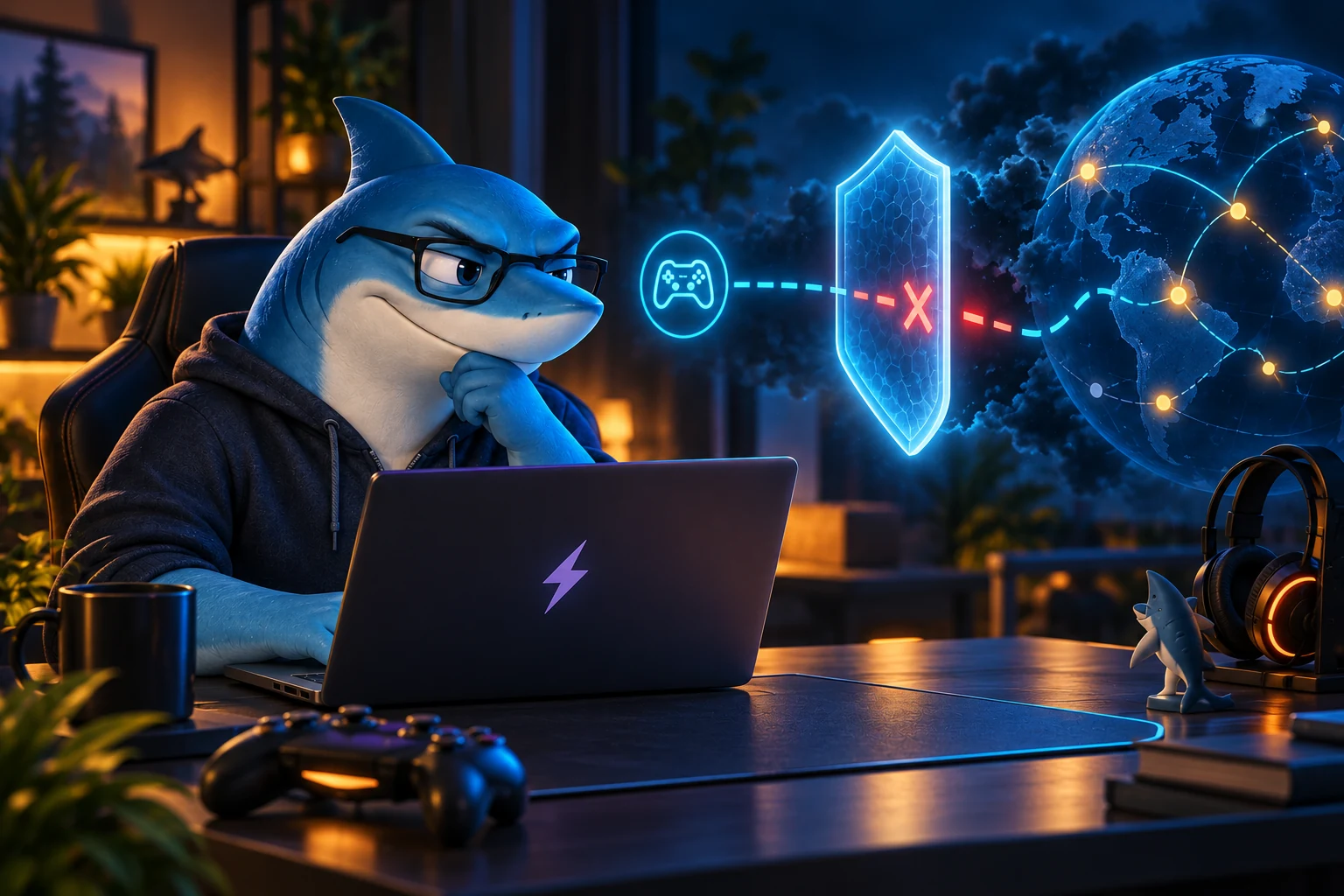
Conceptual troubleshooting sequence, not a packet trace or a guarantee of every version’s behavior.
Official Windows product image: a reference, not your settings screen

Use the live app’s option descriptions for your decision. The supplied image illustrates the desktop product; it does not establish your enabled settings or your device’s current protection.
A small check before your next match
- Outside a match, connect NordVPN and confirm a new page loads. Record the selected protection mode.
- If you choose an intentional disconnect, observe the VPN status, browser access and whether any listed app actually closes. Do not submit sensitive information during the test.
- Reconnect NordVPN and then reopen any closed launcher. Check whether ordinary browsing returns and whether the game can reconnect under its own rules.
- If the result differs from your option’s description, keep the exact version and symptom for official support. Restore the settings you recorded rather than adding unrelated changes.
Keep an observation log, not a made-up score
| Moment | VPN status | Browser / apps | Game outcome |
|---|---|---|---|
| Before interruption | Write your observation | Write your observation | Write your observation |
| During interruption | Write your observation | Write your observation | Write your observation |
| After VPN reconnect | Write your observation | Write your observation | Write your observation |
Blank checklist for your own notes; no measurements have been supplied and this page does not upload them.
Check the offer against your real VPN needs
Need VPN privacy on public Wi-Fi as well as a Windows disconnect control? Compare the basic VPN functions with what you will actually use. Kill Switch is not a reason to buy a more expensive bundle for lower ping. Check the first payment, renewal and purchase-channel refund terms before committing.
The assigned offer currently leads to a Taiwan promotion. Eligible new Taiwan customers on qualifying two-year plans may receive a 7-ELEVEN voucher of NT$300, NT$700 or NT$1,200 depending on the plan. That gift is conditional and does not reduce today’s charge.
The current campaign terms end on 21 October 2026 at 08:00 CET and require claiming within 31 days plus keeping the subscription beyond 30 days. Other markets need their own eligibility and offer check. English language selection does not establish US residence or access to Taiwan vouchers.
The linked Taiwan campaign advertises 73% savings on 8 October. Its stated basis compares the highest-tier two-year introductory monthly equivalent, including extra time, with the current annual renewal monthly equivalent. Other plans and terms vary. The link does not establish an extra exclusive discount.
Questions players actually ask
Why does Steam close when I disconnect NordVPN?
Check the Windows App Kill Switch list. NordVPN names Steam as an example of an app it can close on VPN disconnection. If Steam is absent from that list, inspect the launcher’s own error or crash rather than treating Kill Switch as proven.
Will enabling Kill Switch lower my ping?
It controls what happens when the VPN connection is unavailable. It is not a low-ping setting and cannot keep a broken match online. Compare route and protocol choices separately, outside ranked games.
My guide shows two Internet Kill Switch modes. Why does my app look different?
Support translations and Windows versions can differ. Read your installed option’s description, note the version, and use the current official guide. Do not assume a setting from an older guide exists in every build.
Is the browser extension enough for this Steam walkthrough?
This guide concerns the Windows desktop app. A browser extension and a device VPN have different scope. Do not infer Steam or other desktop-app protection from a browser-only connection.
Should I reset Windows networking straight away?
Start with the connection status, app version and a small server or protocol comparison. A full reset changes saved network settings. Follow the official support process and understand those effects before using it.
Official sources and scope
Windows product image supplied by NordVPN. The English interface may differ from your version; it is not a current Kill Switch screenshot or our gaming test. Conceptual troubleshooting sequence, not a packet trace or a guarantee of every version’s behavior.
- NordVPN Kill Switch: how does it work – Live Chat, VPN Setup, Troubleshooting | NordVPN Customer Support
- How to install and use the NordVPN app on Windows? – Live Chat, VPN Setup, Troubleshooting | NordVPN Customer Support
- My internet disconnects when using a VPN on Windows – Live Chat, VPN Setup, Troubleshooting | NordVPN Customer Support
- My internet disconnects when using NordVPN – Live Chat, VPN Setup, Troubleshooting | NordVPN Customer Support
- NordVPN keeps disconnecting – Live Chat, VPN Setup, Troubleshooting | NordVPN Customer Support
- NordVPN: current pricing
- NordVPN: Taiwan gift terms
- NordVPN: refund policy